
Start Wired Connection
Setup a printer.
Follow the steps below.
 Note
Note
- Notes on Wired Connection (Appears in a new window)
-
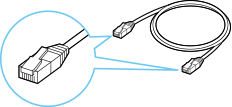
You will need an Ethernet cable (sold separately).
-
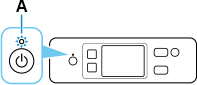
Make sure printer is turned on before starting wired connection setup.
If the power is on, the ON lamp will be lit.
 Important
- If printer is performing cleaning, print head alignment, or other processes, wait for the process to finish, before starting setup.
-
Check the screen displayed on the printer.
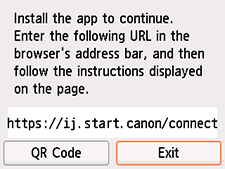
If the following screen is displayed, tap Exit.
If one of the following screens is displayed, proceed to If Different Screen is Displayed:.
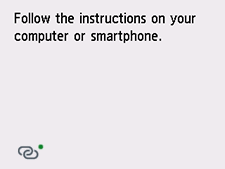
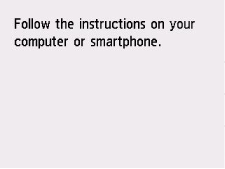
If a different screen is displayed, proceed to the next step.
-
In the printer screen, check if
 (with a green dot) is displayed.
If
(with a green dot) is displayed, proceed to If (with Green Dot) is Displayed:.
If (without a green dot) is displayed or if neither (with a green dot) nor (without a green dot) is displayed, proceed to If Different Screen is Displayed:.
If (with Green Dot) is Displayed:
-
Remove the Cap (B) from the port located on the left side at the back of the printer.
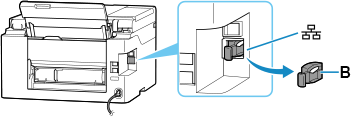
-
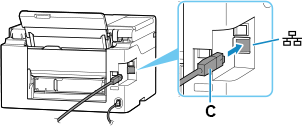
Connect the printer and a network device (router, etc.) with an Ethernet cable (C).
Do not connect to any other port.
 Note
Note- Please wait for about 20 seconds until a wired LAN connection is detected.
-
Check that
(with a green dot) displayed in the screen has changed to (without a green dot).If it does not change, perform from the step If the following screen is not displayed, select
 (Stop), and then select
  (HOME). in "If Different Screen is Displayed:."
 -
Connect your computer or smartphone to the printer using the app.
If Different Screen is Displayed:
-
Remove the Cap (B) from the port located on the left side at the back of the printer.
-
Connect the printer and a network device (router, etc.) with an Ethernet cable (C).
Do not connect to any other port.
-
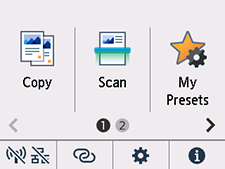
If the following screen is not displayed, select
(Stop), and then select (HOME).If the following screen is displayed, proceed to the next step.
-
Tap
 (Network).
The appearance of
(Network) varies depending on the printer's network connection status.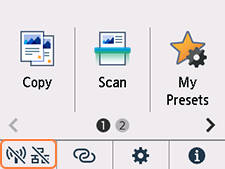 Note
Note- If the administrator mode or screen lock is enabled, the setting screen may not appear for standard users. Ask your network administrator for the setup.
-
Tap Wired LAN.
-
Tap Enable/disable Wired LAN.
-
Tap Enable.
-
If the following screen is displayed, tap OK.
If the following screen is not displayed, proceed to the next step.
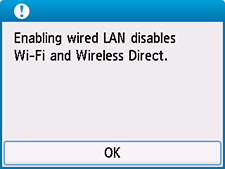
-
Select
(HOME).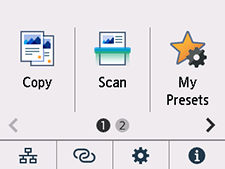
At the lower left of the screen,
 appears.
 -
Connect your computer or smartphone to the printer using the app.
