
Easy wireless connect
Follow the procedure below to setup a printer.
 Important
- If a device is connected to the Internet via a wireless router, and you then connect it to a printer in Wireless Direct mode, the existing connection between the device and wireless router will be disabled. In that case, the connection of the device may switch to a mobile data connection automatically depending on your device. When you connect to the Internet using a mobile data connection, charges may apply depending on your contract.
- When "IEEE802.1X/EAP (WPA/WPA2/WPA3 Enterprise)" is enabled, Easy wireless connect will not work. To connect with "IEEE802.1X/EAP (WPA/WPA2/WPA3 Enterprise)," consult your network administrator.
-
Select
 (HOME) on printer.
 Note
Note- If an error screen is displayed, tap OK, and then select (HOME).
- If an error screen is displayed, tap OK, and then select
-
Tap
 (Wireless connect).
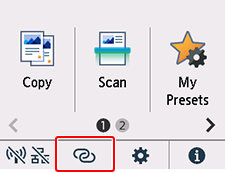 Note
Note- If the administrator mode is enabled, the setting screen may not appear for standard users. Ask your network administrator for the setup.
-
Tap Start.
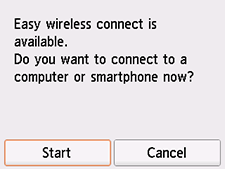
-
Once connection preparation is complete, the following screen appears on the printer.
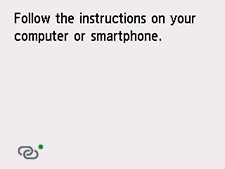
-
Return to the application software and proceed with the setup.
