Wi-Fi Connection
Follow the procedure below to setup a printer.
 Note
Note
- Notes on Wi-Fi Connection (Appears in a new window)
-
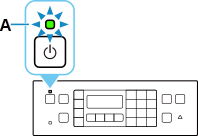
Make sure printer is turned on before starting wireless connection setup.
If the power is on, the ON lamp (A) will be lit or flashing.
 Important
- If printer is performing cleaning, print head alignment, or other processes, wait for the process to finish, before starting setup.
-
Check that wireless router is on.
If it is already turned on, turn it off, and then turn it back on.
Do not proceed to the next screen of this guide until the power is turned on. The connection to the wireless router will be temporarily disabled.
-
Perform one of the following according to the screen displayed on the printer.
If the following screen appears
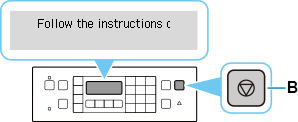
Press the Stop button (B), and then proceed to step 4.
If the following screen appears
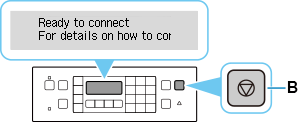
Press the Stop button (B), select Do not connect > Yes, and then proceed to step 4.
If the following screen appears

Select Do not connect > Yes, and then proceed to step 4.
-
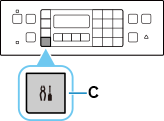
Press the Setup button (C).
-
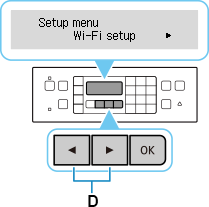
Use the
 or
or  button (D) to select Wi-Fi setup and press the OK button.