Connection without Using a Wireless Router (Windows XP)
(Appears in a new window)
-
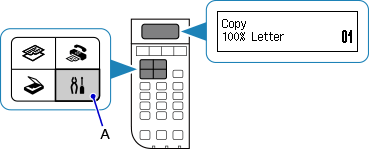
Press the Setup button (A) on the printer.
-
Use the
 or
or  button (B) to select Device settings, then press the OK button.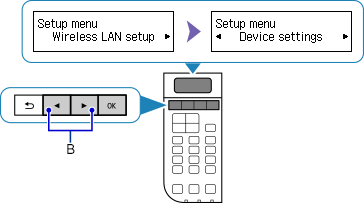
-
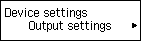
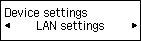
Select LAN settings, then press the OK button.

-
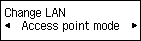
Select Change LAN, then press the OK button.

-
Select Access point mode, then press the OK button.

-
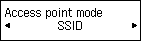
Select SSID, then press the OK button.
-
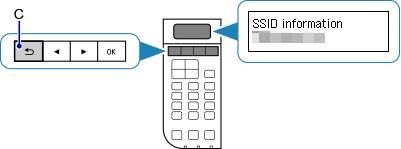
Check SSID information in the printer screen, then press the Back button (C).
You will use the SSID information in the subsequent steps.
-
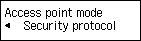
Select Security protocol, then press the OK button.
-
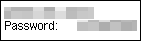
Check the Password (network key), then press the Back button.
You will use the Password (network key) in the subsequent steps.
-
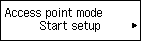
Select Start setup, then press the OK button.
-
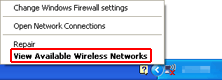
Right-click the Wireless Network Connection icon in the notification area of the taskbar on the computer, then select View Available Wireless Networks.
-
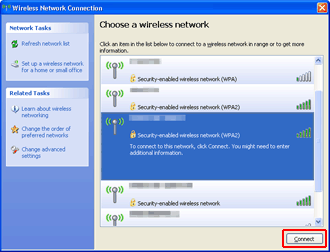
Select the network name (SSID) you want to use, then click Connect.
-
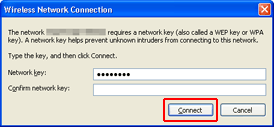
Enter the Password (Network key), then click Connect.
-
When connection is complete, click Back until the screen below appears.
Proceed with the setup.