

You can check the scan results, then save the images to a computer.
 Important
You cannot check the scan results before saving when scanned using Auto scan or the operation panel.
 Note
NoteThe screens for scanning photos are used as examples in the following descriptions.
Start IJ Scan Utility.
Click Settings....
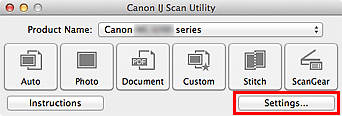
The Settings dialog appears.
Click Photo Scan.
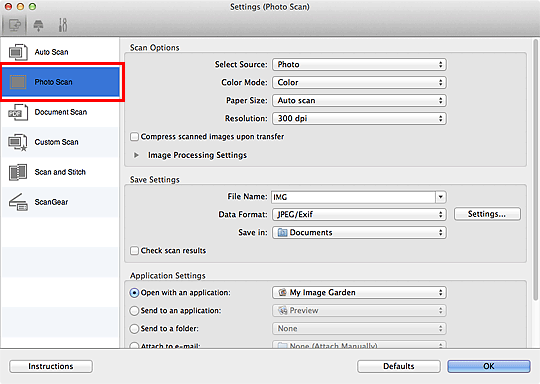
Select the Check scan results checkbox, then click OK.
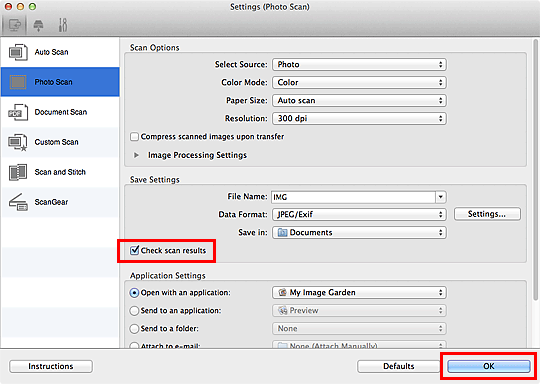
The IJ Scan Utility main screen appears.
NoteSee the following pages for details on the setting items in the Settings dialog.
 Settings (Document Scan) Dialog
Click Photo.
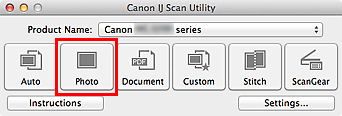
Scanning starts.
When scanning is completed, the Save Settings dialog appears.
NoteClick Cancel to cancel the scan.
Change the image order or file save options as required.
You can change the image order or file save options in the Save Settings dialog.
NoteThe default save folder is the Documents folder.
Click OK.
Scanned images are saved according to the settings.
Page top |


