[Easy Installation] From the DVD-ROM (Network Connection)
This explains the procedure for automatically searching for a device on a network and installing with [Easy Installation] from the supplied DVD-ROM.
In this procedure, as well as the WG driver, standard software and the electronic manual are installed.
Prerequisites
Confirm that the following conditions are satisfied. Complete the preparation operations.
A TCP/IP Network Environment
If you do not know the network environment you are using, check with your network administrator.
The device must be in the same subnet as the computer you are using.
When starting the computer, log on as a member of Administrators.
[Desktop] screen display (when using Windows 8.1/Server 2012/Server 2012 R2)
Procedures
1.
Set the DVD-ROM in the computer → click [Easy Installation].
If the DVD-ROM menu is not displayed, click the subsequent "Open details."
In the following procedure, start the installer. For the DVD-ROM drive name, enter "D:."
If a message prompting you to insert a DVD-ROM is displayed or if Windows Explorer is displayed: Execute [MInst.exe].
If nothing is displayed: [Run] > enter [D:\MInst.exe] > execute [MInst.exe].
2.
If the [Select the Type of Connection] screen is displayed, select [Network Connection] → click [Next].
3.
Click [Install].
4.
Read the license agreement → click [Yes].
5.
Click [Next].
6.
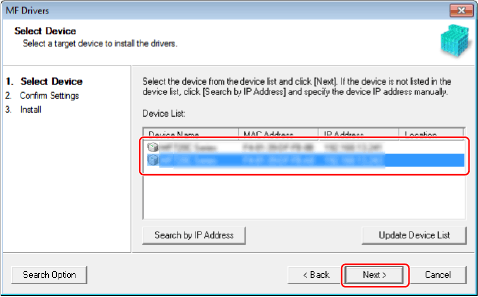
Select the device you are using → click [Next].
 NOTE
NOTEIf the device is not displayed in [Device List], check the connection state between the computer and device and the IP address settings, and click [Update Device List]. If the device is still not displayed, click [Search by IP Address] → enter the IP address of the device → click [OK]. For the IP address confirmation method, refer to the manual of the device.
7.
Check the settings → click [Start].
8.
Install the software according to the instructions on the screen.
9.
Eject the DVD-ROM, select [Restart Computer Now (Recommended)], and click [Restart].
If installed correctly, an WG driver or software icon is displayed in the locations shown next. If the icon is not displayed, uninstall the WG driver or software and reinstall it.
For a printer driver or fax driver:
Windows Control Panel > [Devices and Printers].
For a scanner driver:
Windows Control Panel > [Scanners and Cameras].
For WG Scan Utility:
When using Windows 10:
Start menu > List of apps
When using a version other than Windows 10:
[Start] menu > App or program list > [Canon] folder > [WG Scan Utility] folder
For other software or electronic manuals:
Taskbar or [Desktop] screen