Introduction to Quick Editor
Dedicated application software for Windows 10/11

Do you have problems like this?
Files are not output as intended
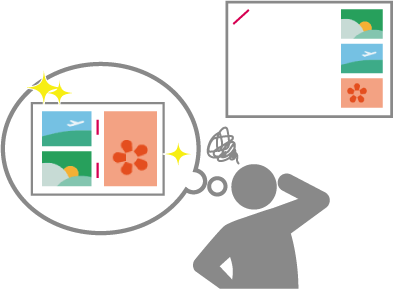
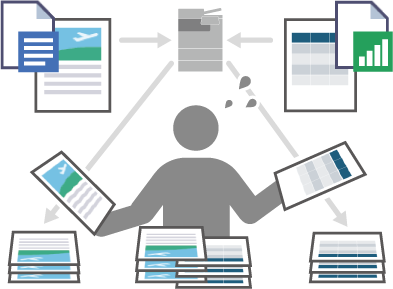
After printing multiple files, the output must be sorted manually
Previous print results cannot be reproduced
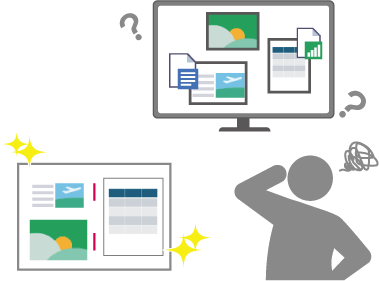
Quick Editor easily solves these problems!
Intuitively adjust the output
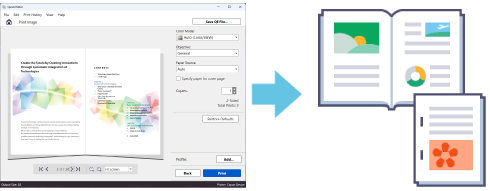
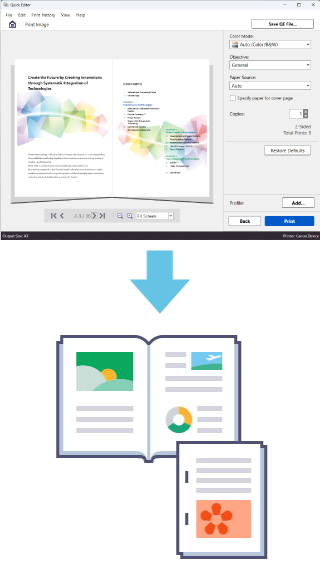
Settings are immediately reflected in the preview. Staple positions and booklet previews can be checked on the screen to ensure that data will be output as intended.
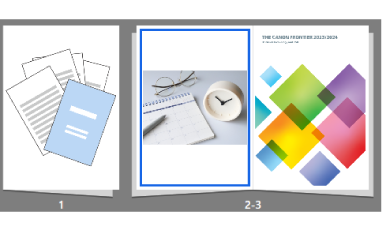
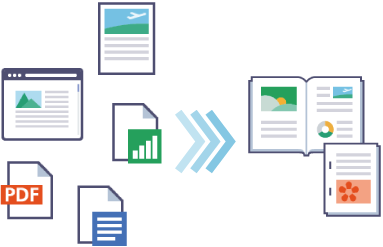
Merge and edit multiple files for printing
Multiple files saved in different formats can be merged. Pages can be replaced or deleted on the screen before printing, so no manual work is required.
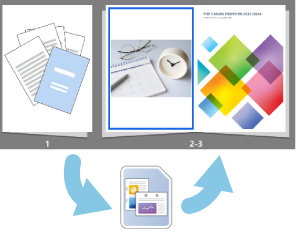
Save and reuse print data
Edits and print settings can be saved as a single data file for printing. Simply open the file next time to print with the same settings.
Three simple steps for printing!
Load the files to print and select the desired layout.
Load the files by opening the app screen and performing a drag-and-drop operation.
Or, select imageFORCE with Quick Editor as the printer when printing the data.
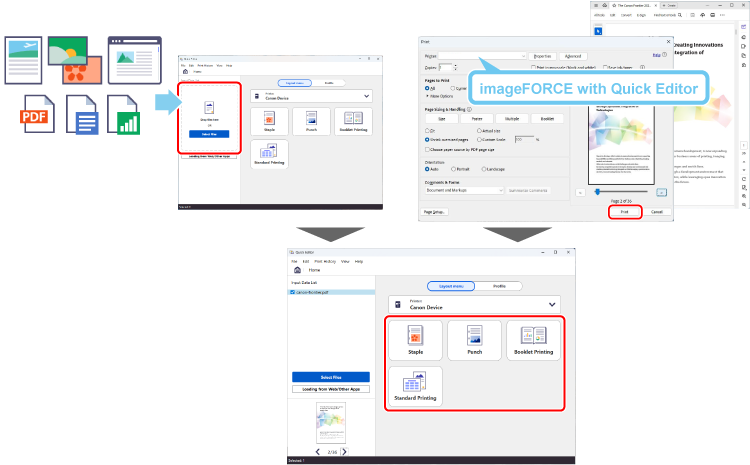
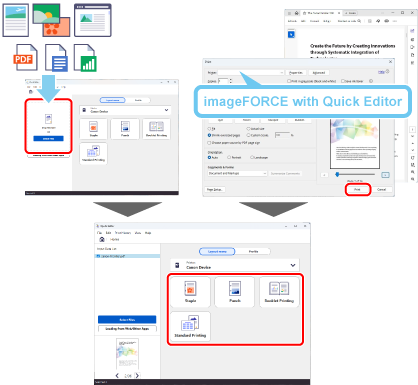
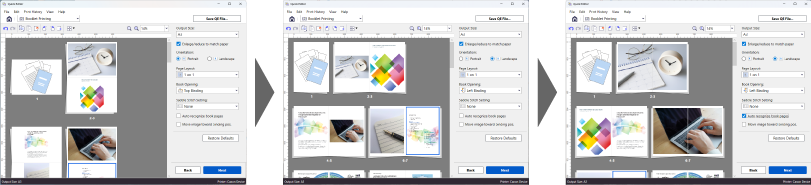
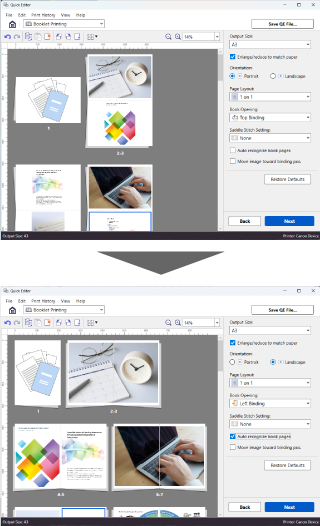
Adjust the layout and print settings while checking the example on the preview screen.
The functions for replacing or rotating pages and automatically recognizing book pages enable you to optimize the layout, even when the document contains pages with different aspect ratios.
Perform a final check of the preview. Specify the color mode and the number of copies to print, then start printing!