Printing to Match Roll Paper Width
|
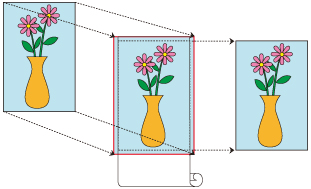
Procedure for printing borderless by enlarging/reducing documents to match roll paper width.
In the printer driver, open the settings screen
Select the paper source
On the Page Setup tab, select Roll Paper under Paper Source. Some printer models provide multiple roll paper options.
Select paper roll width
For paper roll width, enter the same value set in the printer under Roll Paper Width.
Select borderless printing
Place a checkmark next to the Borderless Printing option.
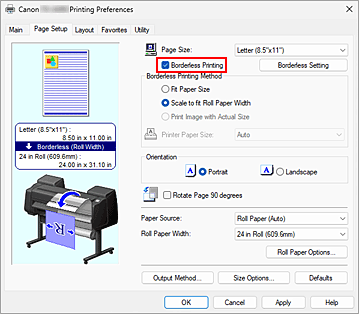
After the Information dialog is displayed, under Roll Paper Width, select the same paper width as that of the paper roll loaded in the printer and click OK.
Select a method for printing borderless
Select Scale to fit Roll Paper Width in Borderless Printing Method.
Complete the setting process
Click OK.
Job will print to the entire roll width without a white border.
 Important
- If you place a checkmark next to the Borderless Printing option, the Page Layout and Print Centered options in the Layout tab will be displayed in gray out and you will not be able to configure them.
- Depending on paper size, the length/width ratio of the paper may be different from that of the image, making it impossible for the whole image to fit on the paper.
When this happens, crop the image with the application software to match paper size. - When printing borderless, printing may stop abruptly and the paper will be cut causing a slight color unevenness on the edges of the paper. If you require exceptionally high quality, in the Roll Paper Options dialog box select No from the Automatic Cutting list. When you do so, the document will be printed without the left and right margins. After the printed material has exited the printer and has been cut, cut the upper and lower edges with a pair of scissors.
- When printing borderless on paper with low ink-fixing properties, depending on frequency of use, the cutter unit may come into contact with the paper surface scratching it and causing the paper to be unevenly cut.
You may be able to improve the situation by clicking Specify... on the Main tab and, in the Paper Detailed Settings dialog box, under Drying Time, set Between Pages to a higher value. - On models equipped with dual roll units, when Roll Paper (Auto) is selected under Paper Source, the printer automatically switches between paper roll 1 (the paper roll in the upper tray) and paper roll 2 (the paper roll in the lower tray) according to the specified paper size. In addition, if Automatically switch paper sources (paper size priority) is enabled on the Device Settings tab, only Scale to fit Roll Paper Width can be selected under Borderless Printing Method. In this case, printing is always performed on paper roll 1, so be sure to load borderless-printable roll paper in paper roll 1.
- The following roll paper supports borderless printing.
- If margins are formed on the left and right of the document, adjust the amount extending off paper during borderless printing from the printer's operation panel.
See "Borders Appear in Borderless Printing" for details on how to set the amount extending off paper.
 Note
Note
- When using applications like Microsoft Word which allow you to set margins, set margins to 0 mm.
