Adjusting Print Head Position Manually
Print Head Alignment corrects the installation positions of the print head and improves misalignment of colors and lines. This printer supports two head alignment methods: automatic head alignment and manual head alignment.
Print head position can be adjusted either automatically or manually.
These instructions are for performing Print Head Alignment manually.
 Important
- A pattern will be printed for head alignment. Do not open the scanning unit / cover while printing is in progress.
 Print Head Alignment
Check that the printer power is on, and then click Other Settings
The Other Settings dialog box appears.
Set to manual adjustment
Select Align heads manually.
Apply settings
Click OK. When the confirmation message appears, click OK.
Click Print Head Alignment
The Print Head Alignment dialog box appears.
Load paper in printer
Load two sheets of A4 size or Letter size plain paper into the cassette.
Run head position adjustment
Click Start.
Perform the necessary operations by following the message instructions.Check printed patterns
In each entry field, enter the number of the pattern with the least prominent streaks or stripes from among the printed patterns.
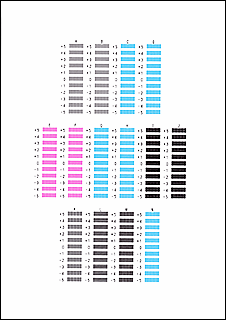
After completing the entries, click OK.
 Note
Note- If the patterns are not uniform, select the pattern with the least prominent vertical streaks.
(A) Less prominent vertical streaks
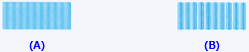
(B) More prominent vertical streaks - If the patterns are not uniform, select the pattern with the least prominent horizontal stripes.
(A) Less prominent horizontal stripes

(B) More prominent horizontal stripes
- If the patterns are not uniform, select the pattern with the least prominent vertical streaks.
Check message content, and click OK
The print head adjustment patterns on the second sheet are printed.
Check printed patterns
In each entry field, enter the number of the pattern with the least prominent stripes or streaks from among the printed patterns.
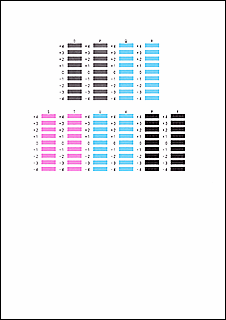
After completing the entries, click OK.
Note- If the patterns are not uniform, select the pattern with the least prominent horizontal stripes.
(A) Less prominent horizontal stripes

(B) More prominent horizontal stripes - If the patterns are not uniform, select the pattern with the least prominent vertical streaks.
(A) Less prominent vertical streaks
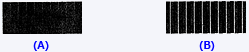
(B) More prominent vertical streaks
- If the patterns are not uniform, select the pattern with the least prominent horizontal stripes.
Complete head position adjustment
Click OK.
The adjustment of the head position is complete.
Note
- In the Print Head Alignment dialog box, click Print Alignment Value to print the current settings so that you can check the settings.
