Disable Windows Protected Print Mode
Disable Windows protected print mode (WPP).
The guide uses example screens from Windows 11.
Select the Settings -> Bluetooth & devices -> Printers & scanners
Under Printer preferences, change Windows protected print mode to Set Up
Click Turn Off under Windows protected print mode.
When prompted with a confirmation message, click Yes to change it to Set Up.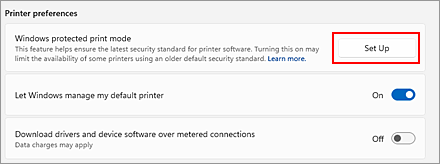
Windows protected print mode (WPP) will be disabled.
 Important
- To change the Windows protected print mode setting, you must be logged in as a user with administrator privileges.
