Create Posters with Minimum Margins
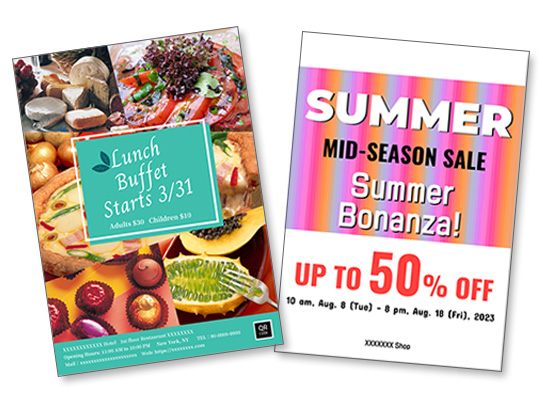
Create posters and notices with minimal margins using Minimal Margin Printing (no margins on the top and bottom, with slight margins on the left and right).
-
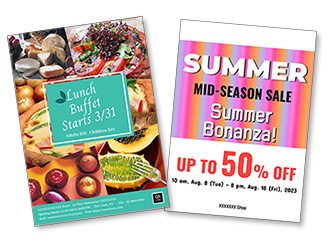 Create high-impact posters with minimal margins! By cutting the left and right margins, you can create posters with no margins on all sides.
 Procedure
The following example introduces how to create using PowerPoint.
Windows 10/PowerPoint:
-
STEP
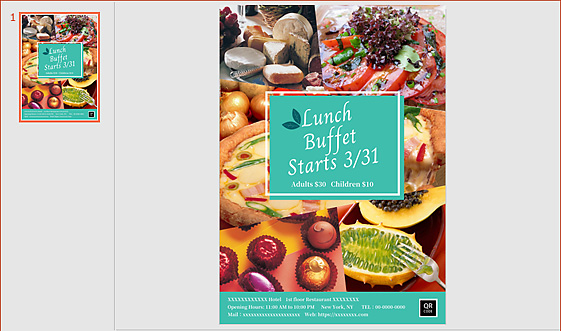
1Prepare a document.
-
STEP
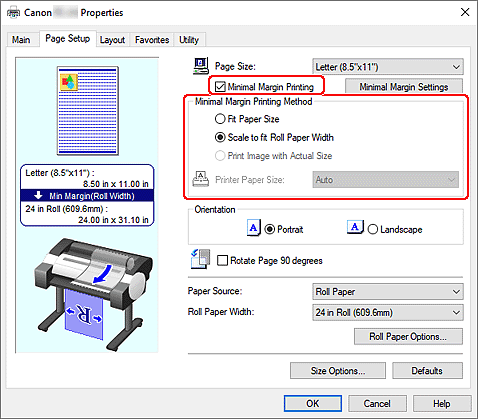
2Open the Print menu, then on the Page Setup tab of Printer Properties, select the Minimal Margin Printing checkbox, specify Minimal Margin Printing Method according to the media size for printing, and then click OK.
 Tips
Tips- To check the output image before printing, select the Preview before printing checkbox on the Main tab.
- If the document size does not match the roll paper width, you can print with minimum margins on three sides of the paper by using the Align to left and print (minimal margin on left only) print function.Setting procedure:
In the dialog box displayed by clicking Minimal Margin Settings on the Page Setup tab of Printer Properties, select the Align to left and print (minimal margin on left only) checkbox, and then click OK. 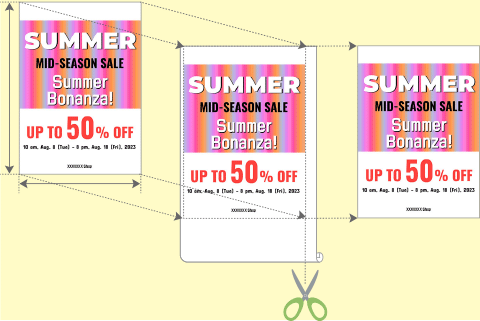
STEP
3Print.
Tips- To make all sides margin-free, cut the left and right margins.

- If the top and bottom of the document are white, you can save the trouble of cutting the left and right margins by selecting the Rotate Page 90 degrees checkbox in STEP 2.

 Complete!