Removing the Roll from the Printer
Remove rolls from the printer as follows.
 Note
Note
-
If you need to cut a printed roll, cut the roll paper at the desired position.
-
Select the paper setting display area on Home screen.
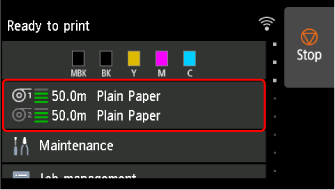
-
Select the Roll paper 1 area.
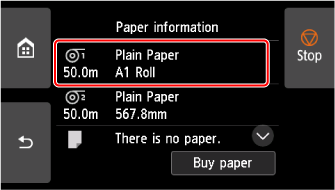
-
Select Remove paper.
-
Select Yes.
The roll is rewound.
 Important
-
If Manage remaining roll amount is set to Barcodes in the operation panel menu, a barcode is printed on the leading edge of the roll paper.
Do not remove the roll before the barcode is printed. You will be unable to keep track of the amount of roll paper left.

-
-
Open top cover and lift output guide.
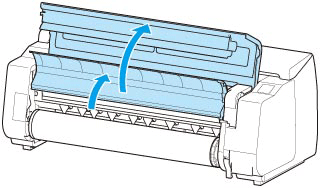 Note
Note-
When using the basket of the printer stand, the paper guide of the basket also moves by raising the output guide.
After raising the output guide, check that the paper guide is tilted toward you. Do not move the paper guide until the output guide is lowered.
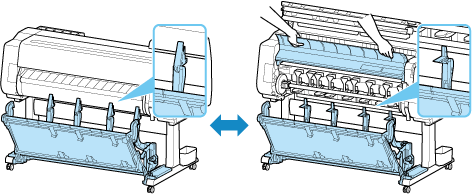
-
-
Using both hands, rotate the Roll Holder in the direction of the arrow to rewind the roll.
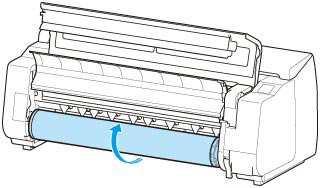
-
Hold Roll Holder by its flanges (A) and remove from roll holder slot.
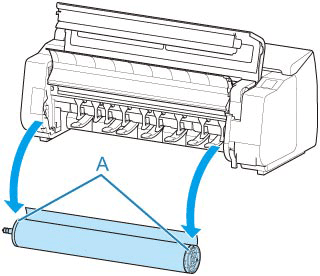 Note
Note-
For instructions on removing the Roll Holder from rolls, see "Removing Rolls From the Roll Holder."
-
-
Lower output guide and close top cover.
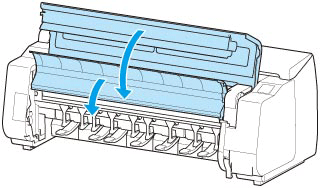 Note
Note-
Before lowering the output guide, check that the paper guide is tilted toward you.
When using the basket of the printer stand, the paper guide of the basket also moves by lowering the output guide.
After lowering the output guide, check that the paper guide is not tilted toward you.
-
