
Scanning by Placing Smartphone over Printer
The printer supports NFC (Near Field Communication), a short-range wireless communication technology.
By placing an NFC-enabled Android smartphone or tablet over the NFC mark on the operation panel of the printer, you can scan items placed on the platen glass of the printer.
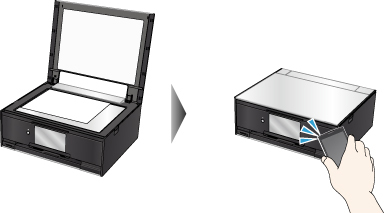
Before Using NFC
Download and install Canon PRINT Inkjet/SELPHY.
Download free from Google Play.
Activates the NFC function of your smartphone. For details, see your smartphone's instruction manual.
 Important
-
May not be available depending on your country or region.
-
The application can be downloaded for free; however, Internet connection fees apply.
Scanning with NFC
Before you start scanning, make sure Canon PRINT Inkjet/SELPHY is installed on your smartphone.
-
Start Canon PRINT Inkjet/SELPHY.
 Note
Note- When starting Canon PRINT Inkjet/SELPHY at first, the message prompting you to register the printer appears. For scanning with NFC, the printer registration is not required. Tap the center of the screen on your smartphone to close the message.
-
Select Scan.
-
Make sure that NFC mark is displayed on the screen of Canon PRINT Inkjet/SELPHY and place smartphone over NFC mark on printer.
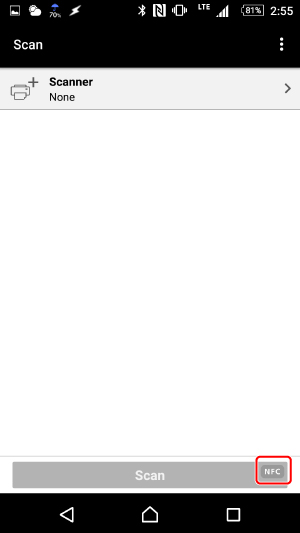
The smartphone is connected to the printer automatically and the printer starts scanning.
When scanning is completed, scanned data is forwarded to the smartphone.
Important
-
If scanning does not start, change the position over which to place the smartphone.
-
If NFC mark is not displayed on the screen of Canon PRINT Inkjet/SELPHY, check the NFC setting of your smartphone and activate the NFC function.
Note
- By placing your smartphone over NFC mark on printer when the menu screen or the registration screen is displayed on Canon PRINT Inkjet/SELPHY, the printer is registered to Canon PRINT Inkjet/SELPHY.
