Operation Panel
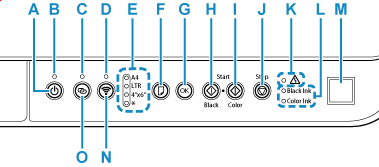
- A: ON button
-
Turns the power on or off. Before turning on the power, make sure that the document cover is closed.
- B: ON lamp
- Lights after flashing when the power is turned on.
- C: Wireless connect lamp
- Lights while setting up Wi-Fi.
- D: Wi-Fi lamp
- Lights when Wi-Fi is enabled.
- E: Paper lamp
- Lights depending on the current paper size.
- F: Paper Select button
- Select the paper size of the printer.
- G: OK button
- Finalizes the paper size. Also used to resolve errors.
- H: Black button
- Starts black & white copying, etc.
- I: Color button
- Starts color copying, etc.
- J: Stop button
-
Cancels operation when print, copy, or scan job is in progress. You can also press and hold the Stop button to perform maintenance or configure the device settings.
- K: Alarm lamp
- Lights or flashes when an error occurs.
- L: Ink lamps
-
Light or flash when ink runs out, etc.
The upper lamp indicates the black FINE cartridge status, the lower lamp the color FINE cartridge status.
- M: QR code
- Enables you to view the online manual to learn how to check the state of the printer.
- N: Wi-Fi button
-
Switch between Wi-Fi and Wireless Direct, or enable/disable them.
Each time you press the Wi-Fi button, the setting switches.
- O: Wireless connect button
- Start the Wi-Fi setup.
