 Ink Does Not Come Out/Blurry or Fuzzy/Inaccurate or Bleeding Colors/Streaks
 Ink Does Not Come Out
 Blurry or Fuzzy
 Inaccurate or Bleeding Colors
 White Streaks
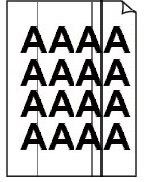 Black Streaks

 Note
Note
-
If printouts are blank, black does not print, is faint, or has a blue or red tint, refer to this web page.
-
-
Check Check paper and print quality settings.
-
-
-
Check Check the estimated ink levels in the FINE cartridges. When a FINE cartridge runs out of ink, replace it with new ones.
-
-
-
Check Is the FINE cartridge installed properly?
-
Check that there is no orange tape left on the FINE cartridge.
If the orange tape remains on the FINE cartridge, peel it off.
-
If the FINE cartridge is not installed securely, ink may not be ejected correctly.
Close and reopen the scanning unit / cover to return the FINE cartridge holder to the position for replacing.
-
Press firmly the print head locking cover until it clicks into place.
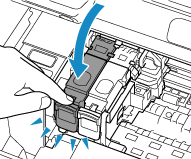
After confirming that the FINE cartridge is installed properly, close the scanning unit / cover
-
-
-
-
Check Print a nozzle check pattern and clean the print head if necessary
-
Print the nozzle check pattern by following the steps below to determine whether the ink ejects properly from the print head nozzles.
-
Step Print a nozzle check pattern.
After printing the nozzle check pattern, examine the pattern.
-
For Windows:
-
For macOS:
If the pattern is not printed correctly, go to the next step.
-
-
Step Clean the print head.
After cleaning the print head, print the nozzle check pattern and check the result.
-
For Windows:
-
For macOS:
If it still does not improve, go to the next step.
-
-
Step Clean the print head again.
After cleaning the print head again, print the nozzle check pattern and check the result.
If it still does not improve, go to the next step.
-
Step Clean the print head deeply.
After cleaning the print head, print the nozzle check pattern and check the result.
-
For Windows:
-
For macOS:
If it does not improve, turn off the printer, wait for more than 24 hours without unplugging the power supply, and go to the next step.
-
-
Step Clean the print head deeply again.
After cleaning the print head, print the nozzle check pattern and check the result.
If it still does not improve, go to the next step.
-
Step Replace the FINE cartridge.
If problem is not resolved after performing print head deep cleaning twice, the print head may be damaged, or ink may have run out. Replace the FINE cartridge.
For details on printing the nozzle check pattern, print head cleaning, and print head deep cleaning, see If Printing Is Faint or Uneven.
-
-
-
-
Check When using paper with one printable surface, check the correct printable side of the paper.
-
Printing on the wrong side of such paper may cause unclear prints or prints with reduced quality.
When you load paper, load paper with the printable side facing down.
Refer to the instruction manual supplied with the paper for detailed information on the printable side.
-
-
-
Check Is platen glass dirty?
-
Clean the platen glass.
-
-
-
Check Is platen glass and/or inner side of document cover dirty?
-
Clean the platen glass and/or the inner side of the document cover, and then reload the document.
-
-
-
Check Make sure original is properly loaded on platen.
-
When you load the original on the platen, load it with the side to be copied facing down.
-
-
-
Check Make sure you are not copying what the printer has printed.
-
When you copy a printout from the printer as a source document, it may not print cleanly, depending on the original photo or document.
Instead of copying the printout, print the original data directly.
-
When copying, see also the sections below:
