 Connecting with Wireless Direct

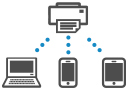
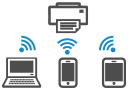
You can connect devices (e.g. computer, smartphone, or tablet) to the printer by two methods below.
-
Wireless connection (connecting devices via a wireless router)
-
Direct wireless connection (connecting devices directly without a wireless router)
This section describes Wireless Direct, which allows you to print by connecting the devices to the printer directly.
 Important
-
You can connect up to 5 devices to the printer at the same time with Wireless Direct.
-
Check the usage restrictions and connect the printer to the Wireless Direct.
-
Some printers support IEEE802.1X/EAP (WPA/WPA2/WPA3 Enterprise). If you enable Wireless Direct while IEEE802.1X/EAP (WPA/WPA2/WPA3 Enterprise) is enabled, IEEE802.1X/EAP (WPA/WPA2/WPA3 Enterprise) is disabled.
When IEEE802.1X/EAP (WPA/WPA2/WPA3 Enterprise) is enabled, enable Administrator mode so that the Wireless Direct settings cannot be changed.
Connecting a smartphone/tablet/computer to the printer
-
Enable Wi-Fi function on smartphone/tablet/computer.
Enable Wi-Fi in the Settings menu on your smartphone/tablet/computer.
For instructions on enabling the Wi-Fi function, refer to the instruction manual for your smartphone/tablet/computer.
-
Select "XXXXXX-ModelName" ("X" represents alphanumeric characters) from list displayed on your device.
 Note
Note-
If "XXXXXX-ModelName" does not appear on the list, Wireless Direct is not enabled.
See Enable Wireless Direct for printer to enable Wireless Direct.
-
-
Enter password.
The smartphone/tablet/computer is connected to the printer.
You can print from your smartphone or tablet by installing the App. Download it from App Store and Google Play.
Changing Wireless Direct Setting
-
Check that printer is turned on.
-
Press and hold the Stop button until the Alarm lamp flashes 12 times, release the Stopbutton.
-
Press Color button.
Enable Wireless Direct for printer
Note-
Press Black button, then disable Wireless Direct for printer.
-
To check the printer's MAC address and the current Wireless Direct settings, print out the network setting information.
-
