Front View
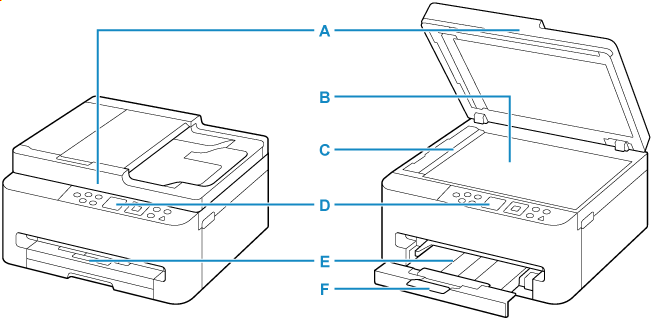
- A: Document Cover
- Open to load an original on the platen.
- B: Platen
- Load an original here.
- C: ADF Scan Helper
- Remove only when cleaning the ADF.
- D: Operation Panel
-
Use to change the settings of the printer or to operate it.
- E: Paper Output Tray
- Printed paper is ejected. Pull out it before printing.
- F: Output Tray Extension
- Open to support ejected paper.
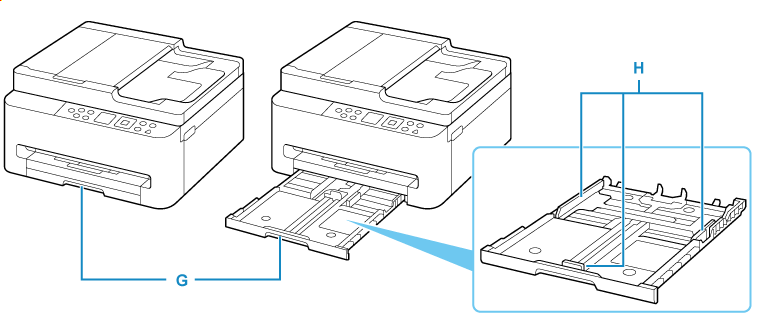
- G: Cassette
-
Load paper into the cassette, and insert it into the printer.
- H: Paper Guides
- Align with right/left/front sides of the paper stack.
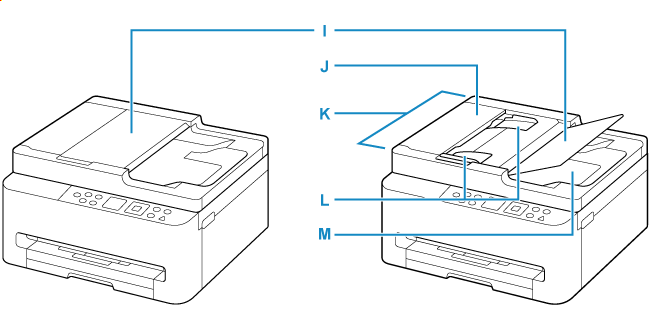
- I: Document Tray
- Open to load a document in the ADF. You can load two or more sheets of document of the same size and thickness. Load the document with the side you want to scan facing up.
- J: Document Feeder Cover
- Open when clearing jammed documents.
- K: ADF (Auto Document Feeder)
-
Load a document here. The documents loaded in the document tray are scanned automatically one sheet at a time.
- L: Document Guide
- Adjust this guide to match the width of document in the ADF.
- M: Document Output Slot
- Documents scanned from the ADF are delivered here.
