 Printer Does Not Pick Up or Feed the Paper/"No Paper" Error

-
Check 1 Check the printer is placed on the right spot.
Place the printer on a flat table or similar platform.
-
Check 2 Is paper loaded in the rear tray?
-
Check 3 When loading paper, consider the following.
-
When loading two or more sheets of paper, align the edges of the sheets before loading the paper.
-
When loading two or more sheets of paper, make sure the paper stack does not exceed the paper load limit.
However, paper may not feed correctly at the maximum capacity, depending on the type of paper or environmental conditions (very high or low temperature and humidity). In such cases, reduce the amount of paper you load at a time to less than half of the paper load limit.
-
Always load the paper in portrait orientation, regardless of the printing orientation.
-
When you load the paper on the rear tray, place the print side facing UP, align the paper stack against the right side of the rear tray and slide the paper guide so that it just touches the left edge of the stack.
-
-
Check 4 Is paper too thick or curled?
-
Check 5 When loading envelopes or Hagaki, consider the following.
-
When printing on envelopes, see Loading Envelopes, and prepare the envelopes before printing.
Once you have prepared the envelopes, load them in portrait orientation. If the envelopes are placed in landscape orientation, they will not feed properly.
-
-
Check 6 Make sure media type and paper size settings match with loaded paper.
-
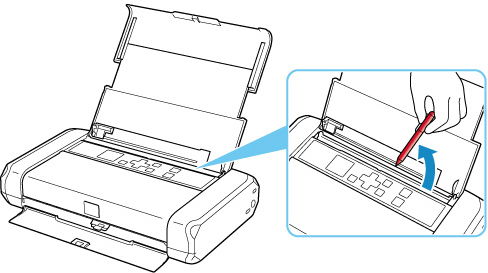
Check 7 Make sure that there are not any foreign objects in the rear tray.
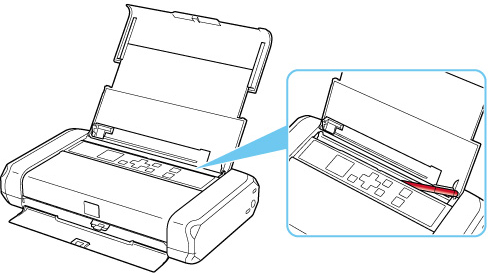
If the paper tears in the rear tray, see List of Support Code for Error (Paper Jams) to remove it.
If there are any foreign objects in the rear tray, be sure to turn off the printer, unplug it from the power supply, then remove the foreign object. If you use a battery, turn off the printer, detach the battery, then remove the foreign object.
-
Check 8 Clean Paper Feed Roller.
 Note
Note-
Cleaning the paper feed roller abrades it, so do this only when necessary.
-
If the measures above do not solve the problem, contact your nearest Canon service center to request a repair.
