 Printed colors are inaccurate
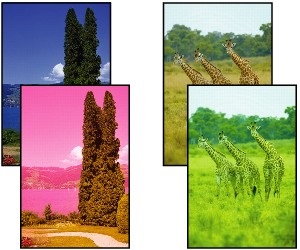

-
Check 1 Do page size and media type settings match size and type of loaded paper?
If these settings do not match, it is not possible to obtain the proper result.
If you are printing a photograph or an illustration, an incorrect paper type setting may reduce the quality of the printout color.
Also, if you print with an incorrect paper type setting, the printed surface may be scratched.
-
Printing from your computer
Check the settings using the Printer Driver.
- Basic Printing Setup (Windows)
- Basic Printing Setup (macOS)
-
Printing from your smartphone/tablet using

Check the settings on the App.
-
-
Check 2 Make sure appropriate print quality is selected (see list above).
Select a print quality suited to the paper and to what you are printing. If you notice blurs or uneven colors, increase the print quality setting and retry the printing.
-
Check 3 Is the Print head nozzle blocked?
Print a test pattern to check the nozzles and see if they are clogged.
 Note
Note-
To automatically check for nozzle blockages after printing, set Auto nozzle check in the LCD menu to a setting other than Disable.
-
-
Check 4 Has color been adjusted in the printer driver?
Follow the steps below to adjust color settings.
-
Windows
On Media/Quality sheet of the printer driver, select Manual for Color/Intensity and click Set.... On Color Adjustment sheet, adjust the color.
- Media/Quality Tab Description (Windows)
-
macOS
Adjust the color settings in the printer driver Color Options.
- Color Options (macOS)
-
-
Check 5 Has the computer or monitor color been adjusted?
Take the actions below.
-
Refer to the computer and monitor documentation to adjust the colors.
-
Adjust the settings of the color management software, referring to the software documentation as needed.
-
