Wired Connection
 Important
- If printer is performing cleaning, print head alignment, or other processes, wait for the process to finish, before starting setup.
 Note
Note
-
Refer to the following for notes when connecting to a wired LAN.
-
Press the HOME button to display the HOME screen.
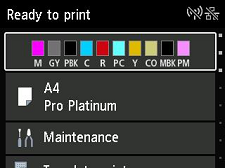
-
You will need an Ethernet cable (sold separately).
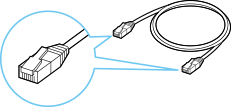
-
Remove the Cap (B) from the port located on the left side at the back of the printer.
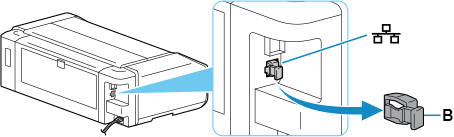
-
Connect the printer and a network device (router, etc.) with an Ethernet cable (C).
Do not connect to any other port.
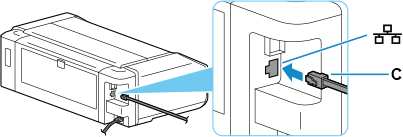
-
Select
 LAN settings on the HOME screen.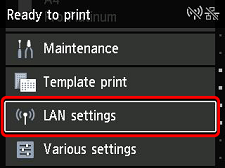
-
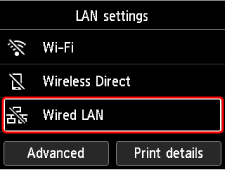
Select Wired LAN.
-
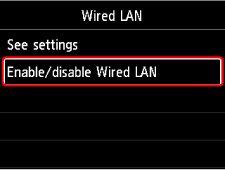
Select Enable/disable Wired LAN.
-
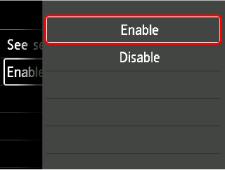
Select Enable.
-
Press the HOME button.
The network connection setup is now complete.
Once connection is complete,
 appears on the screen.
If performing setup with software, return to the software and proceed with the installation.
If performing setup without using computer, smartphone, etc.
-
Download and install software.
- After installing the software, start the software, and then follow the on-screen instructions to proceed with setup.
If performing setup using computer, smartphone, etc.
Windows
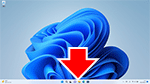
- In the taskbar, click the application software you have been using for setup, and then follow the on-screen instructions to proceed with setup.
macOS
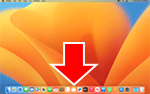
- Click
 in the Dock, and then follow the on-screen instructions to proceed with setup.
 Smartphone/tablet/Chromebook
- Return to the app you have been using for setup on the smartphone, and then follow the on-screen instructions to proceed with setup.
