Manual connect
-
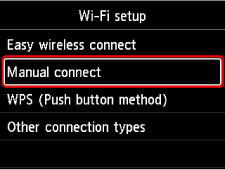
Select Manual connect.
-
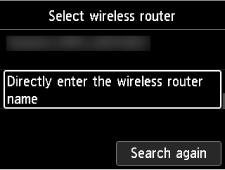
Select your wireless router.
If you select a Wi-Fi router name, proceed to step 8 and continue with the settings.
If you select "Directly enter the wireless router name", proceed to step 3 and continue with the settings.
If "Failed to connect to the wireless router." appears, see "Failed to connect to the wireless router." Appears.
-
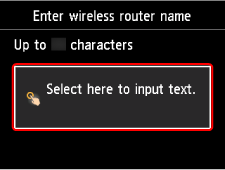
Press the OK button.
-
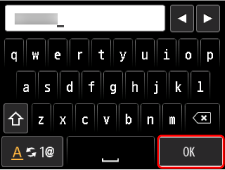
Enter the wireless router name (SSID). Text entry is case-sensitive.
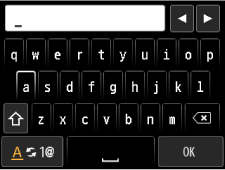
If you don't know your wireless router name, see the wireless router manual or contact its manufacturer.
-
After entry, select OK on the keyboard.
-
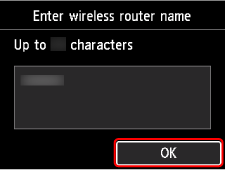
Make sure the wireless router name (SSID) is correct.
-
Press the OK button.
-
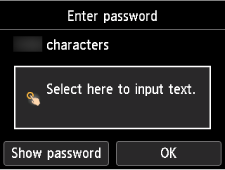
The screen below will appear.
If "Connected to the wireless router." appears, the network does not require a password. Continue from step 13.
-
Press the OK button.
-
Enter the password. Text entry is case-sensitive.
If you don't know the password for your wireless router, see the wireless router manual or contact its manufacturer.
-
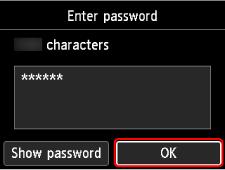
After entry, select OK on the keyboard.
-
Press the OK button.
-
When the screen on the below appears, press the OK button.
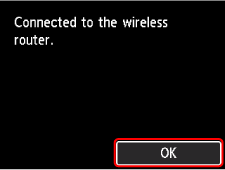
-
Press the HOME button.
The network connection setup is now complete.
Once connection is complete,
 appears on the screen.
If performing setup with software, return to the software and proceed with the installation.
-
Download and install software.
- After installing the software, start the software, and then follow the on-screen instructions to proceed with setup.
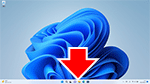
- In the taskbar, click the application software you have been using for setup, and then follow the on-screen instructions to proceed with setup.
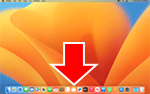
- Click
 in the Dock, and then follow the on-screen instructions to proceed with setup.
- Return to the app you have been using for setup on the smartphone, and then follow the on-screen instructions to proceed with setup.
