
Sending Scanned Data as E-Mail from Computer
Before attaching scanned data to an e-mail, check the following:
-
MP Drivers are installed. (Windows)
If MP Drivers are not yet installed, install MP Drivers with the Setup CD-ROM or install them from the Canon website.
-
When scanning via a network connection
Make sure the printer is connected to the computer correctly.
-
For Windows:
-
For macOS:
-
-
The destination and the file name are specified in Canon Scan Utility (Windows)/Canon IJ Scan Utility Lite (macOS).
You can specify the destination and the file name in Canon Scan Utility/Canon IJ Scan Utility Lite. For more on settings of Canon Scan Utility/Canon IJ Scan Utility Lite:
-
For Windows:
-
For macOS:
-
Follow the procedure below to send the scanned data as an e-mail from the computer.
-
Select
 Scan on the HOME screen.
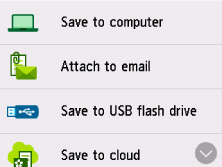
The screen for selecting to which you save/forward the data is displayed.
-
Select
 Attach to email.
 -
Select
 E-mail from PC.
 -
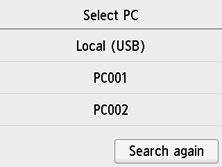
Select a computer to forward scanned data.
Select Local (USB) for a USB-connected computer, or select the computer to forward the scanned data for a network-connected computer.
The Scan standby screen is displayed.
-
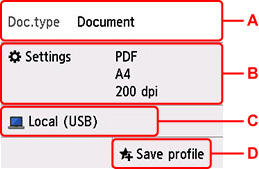
Specify settings as necessary.
-
A: Select the document type.
- Document
- Select to scan the document.
- Photo
- Select to scan the photo.
-
B: Displays Scan settings screen.
For more on the setting items:
-
C: Displays the screen to select the save/forward.
-
D: Select to register the current scan settings as a custom setting.
-
-
Press the Black button or the Color button.
 Note
Note-
If the original is not loaded properly, a message is displayed on the touch screen. Load the original on the platen or in the ADF according to the scan settings.
-
If you load the original in the ADF:
The printer starts scanning and scanned data is forwarded to the computer.
-
If you load the original on the platen:
-
When you select JPEG for Format on the scan setting screen:
The printer starts scanning and scanned data is forwarded to the computer.
-
When you select PDF or Compact PDF for Format on the scan setting screen:
The confirmation screen asking you if you continue scanning is displayed after scanning is complete.
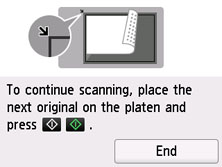
If you continue scanning, load the original on the platen and start scanning.
If you do not continue scanning, select End. The scanned data is forwarded to the computer in one PDF file.
-
The scanned data is forwarded to the computer according to the mail software or file name set in Canon Scan Utility/Canon IJ Scan Utility Lite and attached to an e-mail.
For the settings or how to send an e-mail, refer to the mail software's instruction manual.
Remove the original on the platen or from the document output slot after scanning is complete.
-
Note
-
When using Windows, the program selection screen may be displayed after pressing Black button or Color button.
In this case, select Canon Scan Utility to the application software to be started and click OK.
