
 Printed Barcodes Are Not Recognized

-
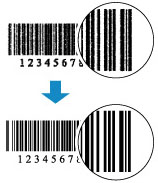
Check 1 Print in the dedicated barcode printing mode.
Printing in the dedicated barcode printing mode makes barcodes easier to read with barcode readers.
In the Print Options dialog box of the Printer Driver, check Print barcodes and 2D barcodes clearly.
For details, refer to Print barcodes and 2D barcodes clearly in the Print Options dialog box below.
 Important
- If you select Print barcodes and 2D barcodes clearly, the printing speed may be reduced.
- When printing is finished, remove the check mark from Print barcodes and 2D barcodes clearly. Otherwise, text may be printed thin.
- Supported media : Plain paper, Hagaki, Envelope, Label Paper, Matte Photo Paper, High Resolution Paper
-
Check 2 Are you using paper or media that bleeds easily?
Barcodes cannot be printed clearly on paper or media that easily bleeds ink. Use the appropriate paper and media.
-
Check 3 Perform print head alignment.
If printed lines are misaligned/distorted or print results are otherwise unsatisfactory, adjust the print head position.
 Note
Note-
If the problem is not resolved after performing the print head alignment, perform print head alignment manually from your computer.
-
For Windows:
-
-
