Ink Does Not Come Out/Blurry or Fuzzy/Inaccurate or Bleeding Colors/Streaks
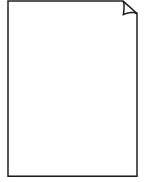 Ink Does Not Come Out
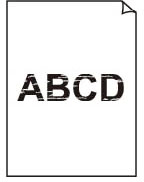 Blurry or Fuzzy
 Inaccurate or Bleeding Colors
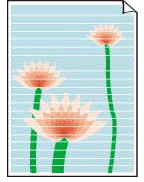 White Streaks
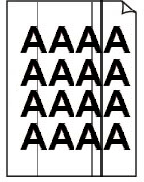 Black Streaks

 Note
Note
-
If printouts are blank, black does not print, is faint, or has a blue or red tint, refer to this web page.
-
Check 1 Check paper and print quality settings.
-
Check 2 Print a nozzle check pattern and clean the print head when necessary.
-
Step 1 Print a nozzle check pattern.
If the pattern is not printed correctly, check if the ink tank for the problem color is empty.
if the ink tank is not empty, go to the next step.
-
Step 2 Check the printed nozzle check pattern.
-
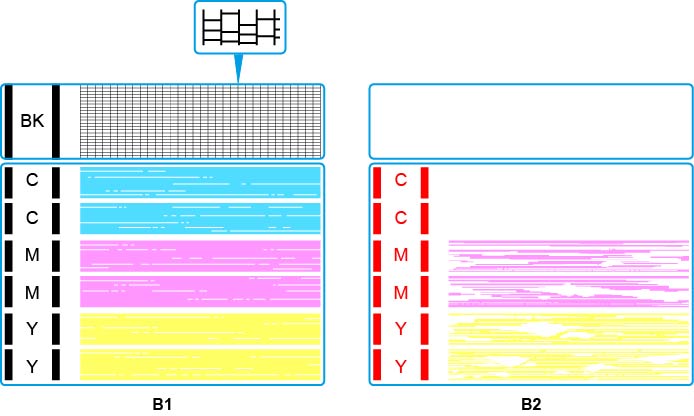
If the nozzle check pattern is similar to B1:
If the nozzle check pattern is similar to B2:
-
Note
-
For details on printing the nozzle check pattern.
-
From the printer
-
-
-
Step 3 Clean the print head.
After cleaning the print head, print the nozzle check pattern and check the result.
-
From the printer
If it still does not improve, go to the next step.
-
-
Step 4 Clean the print head again.
After cleaning the print head again, print the nozzle check pattern and check the result.
If it still does not improve, go to the next step.
-
Step5 Clean the print head deeply.
After cleaning the print head deeply, print the nozzle check pattern and check the result.
-
From the printer
If it does not improve, turn off the printer, wait for more than 24 hours, and go to the next step.
-
-
Step 6 Clean the print head deeply again.
After cleaning the print head deeply again, print the nozzle check pattern and check the result.
-
From the printer
If it still does not improve, go to the next check.
-
Check 3 Perform Replace Ink in Print Head.
- Perform Replace Ink in Print Head
If performing an Ink Flush does not improve the print results of the nozzle check pattern, replacing the print head may resolve the issue.
For details, see here.
Note
-
To minimize image issues, we recommend printing once a week.
Check 4 When using paper with one printable surface, check the correct printable side of the paper.
Printing on the wrong side of such paper may cause unclear prints or prints with reduced quality.
When you load paper on the rear tray, load paper with the printable side facing up.
Refer to the instruction manual supplied with the paper for detailed information on the printable side.
-
When copying, see also the sections below:
-
Check 5 Is platen glass and/or inner side of document cover and/or glass of ADF dirty?
Clean the platen glass and/or the inner side of the document cover and/or the glass of ADF, and then reload the document.
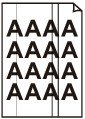
Note- If the glass of ADF is dirty, black streaks appear on the paper as shown below.
-
Check 6 Make sure original is properly loaded on platen.
When you load the original on the platen, load it with the side to be copied facing down.
-
Check 7 Is copy source a printed paper by printer?
If you use a printout done by this printer as the original, print quality may be reduced depending on the condition of the original.
Print from the printer directly, or reprint from the computer if you can reprint from it.
-
Note
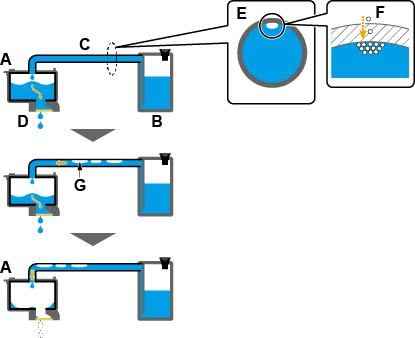
- Air may naturally enter the Print Head (A), which ejects ink, and the Tube (C), which connects it to the Ink Tank (B).If this air is carried to the head and accumulates there, it may become difficult to dispense the Ink (D).
- The cross-section of the Tube (E) shows that a small amount of air (F) enters.This minute amount of air is carried along with the ink during printing and does not affect the result. However, if the printer is not used for a long time, large bubbles (G) form.Large air bubbles are transported to the Print Head. When the amount of air inside the Print Head (A) increases to a certain level, the flow of ink becomes restricted, resulting in blurred images or blank pages being ejected.