
Printing Photos from a Computer
This section describes how to print photos with My Image Garden.
-
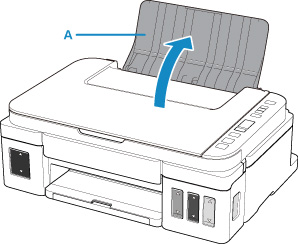
Open the paper support (A).
-
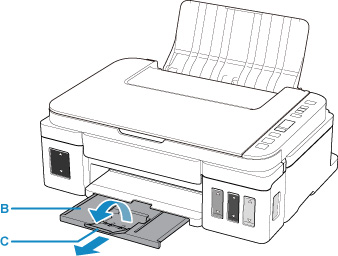
Pull out the paper output tray (B) and open the output tray extension (C).
-
Load paper WITH THE PRINT SIDE FACING UP.
-
Align the paper guides (D) with the paper width.

-
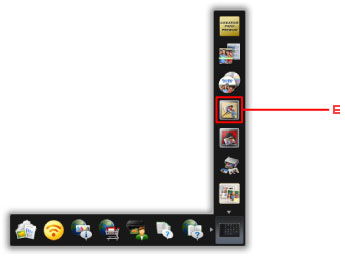
Click the My Image Garden icon (E) in Quick Menu.
The Guide Menu screen is displayed.
 Note
Note- The number and types of icons displayed vary depending on your region, the registered printer/scanner and the installed applications.
-
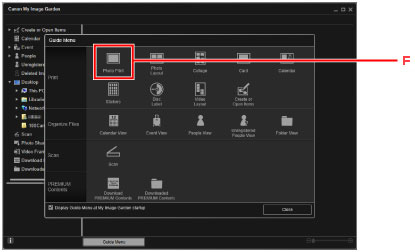
Click the Photo Print icon (F).
-
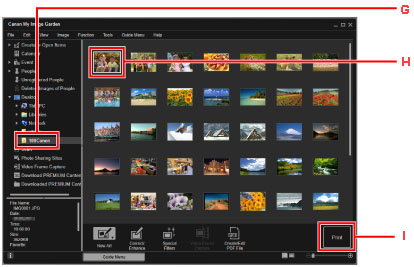
Click the folder (G) with photos you want to print.
-
Click the photos (H) you want to print.
To select two or more photos at a time, click photos while pressing the Ctrl key.
-
Click Print (I).
-
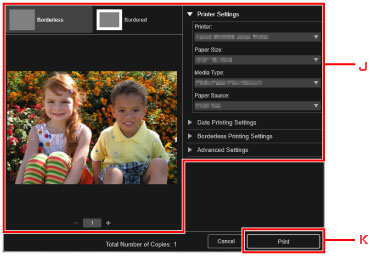
Specify the number of copies, your printer name, media type, etc. (J).
-
Click Print (K).
Note
-
My Image Garden lets you use images on your computer, such as photos taken with a digital camera, in a number of ways.
