
Removing Jammed Paper from Rear Side
 Important
- The printer cannot be turned off while it is sending or receiving a fax, or when the received fax or the unsent fax is stored in the printer's memory. Make sure that all faxes have been sent and received, press the printer's Stop button to stop printing, and then turn off the printer.
-
Press printer's Stop button.
-
Turn off printer and unplug it.
-
Retract paper output tray.
-
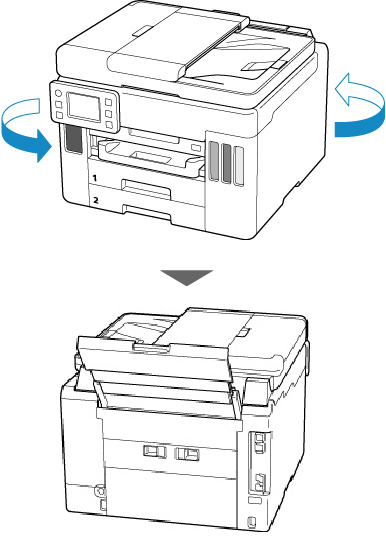
Turn printer so that rear side of printer faces toward you.
 Important
- When changing the orientation of the printer, do not turn the printer upside down or tilt it. The ink may leak out.
-
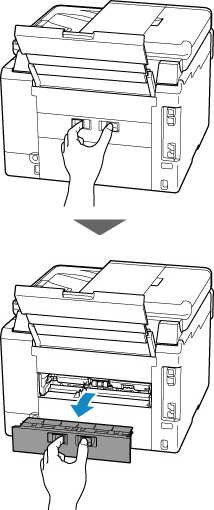
Detach rear cover.
Pull out the rear cover.
-
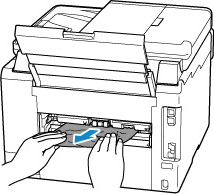
Hold jammed paper firmly with both hands and pull it out slowly.
If the paper is rolled up, pull it out and grasp the edges of the paper.
 Note
Note- Do not touch the inner parts of the printer.
If you are unable to remove the jammed paper, follow the steps below to detach the transport unit and then remove the paper.
-
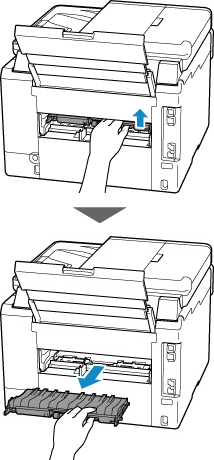
Detach transport unit.
Lift up the transport unit and pull it out.
-
Slowly pull out jammed paper.
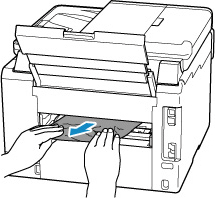 Note
Note- Do not touch the inner parts of the printer.
Make sure all jammed paper is removed.
-
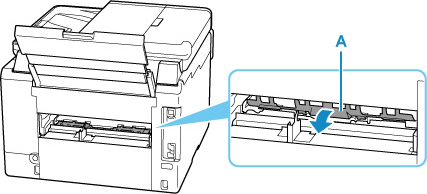
If parts (A) are raised, tip them toward you.
-
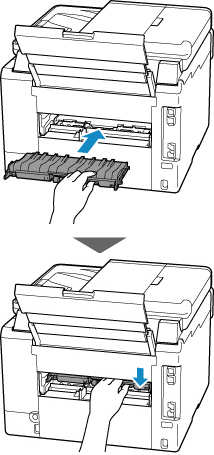
Replace transport unit.
Insert the transport unit until it reaches the back of the printer and clicks into place.
-
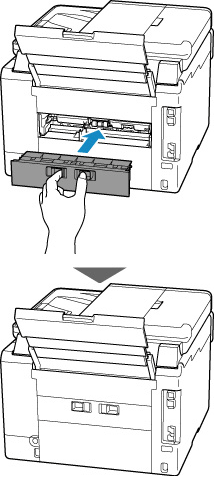
Attach rear cover.
Push in the rear cover until it is closed completely.
-
Plug printer back in and turn printer back on.
-
Load paper.
- Loading Plain Paper / Photo Paper in Rear Tray
- Loading Plain Paper in Cassette
- Loading Envelopes in Rear Tray
Note- Make sure you are using suitable paper and loading it correctly.
- We recommend using paper sizes other than A5 to print documents with photos or graphics. A5 paper may curl and jam as it leaves the printer.
-
Redo printing.
All jobs in the print queue are canceled. Redo the printing.
Note- If the 1300 error recurs, check the feed slot of the rear tray again. If a foreign object is in the rear tray, refer to Check 1 in What to Do If Paper Is Not Fed/Output Normally and take appropriate action.
If the measures above do not solve the problem, contact your nearest Canon service center to request a repair.
Important
- Do not tilt the printer when moving it since the ink may leak out.
- When transporting the printer for repairing it, see Repairing Your Printer.
