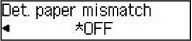
2110
Cause
An incompatible print setting combination has been specified for the paper loaded in the cassette.
 Note
Note
What to Do
To specify the appropriate print settings for the paper loaded in the cassette and retry printing, follow the steps below.
-
Press printer's OK button.
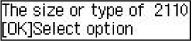
-
Use

 button to select Cancel and press OK button.
-
Reinstall cassette into printer.
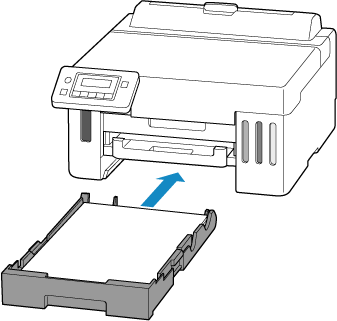
-
Press OK button.

-
Select paper size.
The paper information is used to specify the print settings in step 7.
Use
button to select paper size and press OK button.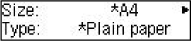
-
Check media type.
The paper information is used to specify the print settings in step 7.
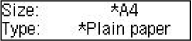
-
Specify paper information (paper size and media type).
Note-
For the proper combination of paper size and media type, see below.
-
-
Redo printing.
Other Measures
Load paper specified in print settings
To replace the paper in the cassette and continue printing, follow the steps below.
-
Press printer's OK button.
-
Use
button to select Replace the paper and press the OK button.
-
Load paper specified in print settings into cassette.
-
Press OK button.
-
Use
button to select paper size and press OK button. -
Press OK button.
Print without changing paper and print settings
To continue printing with a mismatch between the paper loaded in the cassette and the paper information registered in the printer, follow the steps below.
 Important
- The printed result may not be the intended color or size.
-
Press printer's OK button.
-
Use
button to select Print on set paper and press the OK button.Note- Depending on your printer's settings, Print on set paper may not be displayed.

Disable notifications for 2110 error
To disable the function to detect paper setting mismatch, follow the steps below.
-
Press the Setup button once or twice.
Setup menu screen is displayed.
-
Select Feed settings and press the OK button.
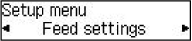
-
Select Det. paper mismatch and press the OK button.
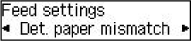
-
Select OFF.