
Adjusting Position and Size of Images
In the Item edit screen, you can adjust the position and size of images.
 Note
Note
- Photo layout editing is used as an example in the following descriptions.
-
In Item edit screen, select the image you want to adjust.
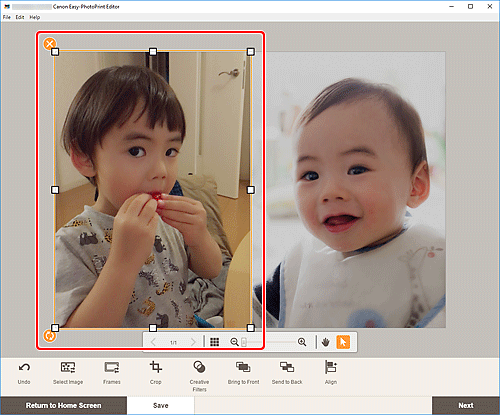
An image layout frame and operation icons appear.
-
Change position, size, or angle of image.
- Move
- When you place the cursor over the image layout frame, the cursor changes to
 (Move) and you can move the image.
 - Size
- Drag the white squares of the image layout frame to adjust its size.
 (Delete)
- Deletes the image layout frame.
 (Rotate)
-
Drag to rotate the image layout frame freely around its center.
Click to rotate clockwise by 90 degrees.
Note- In the menu displayed by right-clicking an image layout frame, you can cut, copy, or paste the image, or change the display order or alignment/distribution of images.
-
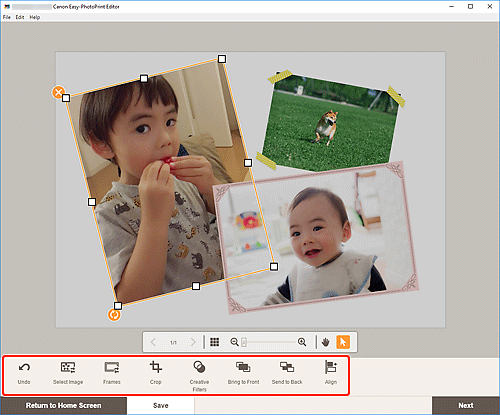
In Editing tools area, adjust images (add frames, crop, change the display order, align/distribute, etc.).
-
Click outside item.
The adjusted image is reflected in the item.
