
Adding Stamps
In the Item edit screen, you can add stamps to items.
 Note
Note
- You can place up to 10 stamps in a page.
-
In Item edit screen, tap Stamps.
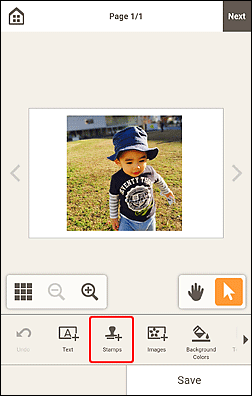
The view switches to the Stamps screen.
-
Select the stamp you want to use.
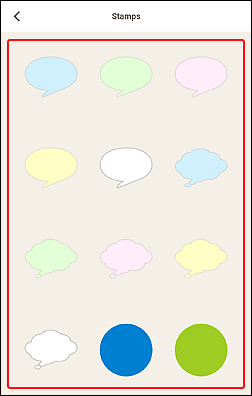
The selected stamp is placed in the center of the page in the Item edit screen.
-
Adjust stamp (move, reduce, enlarge, rotate, etc.).
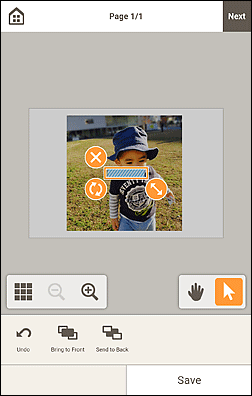
- Move
- Drag the stamp to move it.
 (Delete)
- Deletes the stamp.
 (Rotate)
-
Drag to rotate the stamp freely around its center.
Tap to rotate clockwise by 90 degrees.
 (Enlarge/Reduce)
- Drag in the direction of the arrow to enlarge/reduce the stamp.
-
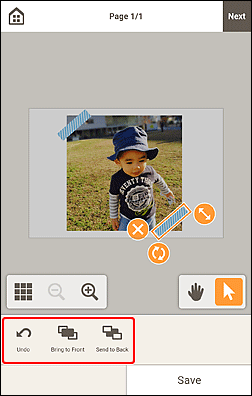
In Editing tools area, adjust stamps (change display order).
-
Tap outside item.
The adjusted stamp is reflected in the item.
