
Printer to use Dialog Box
This dialog box allows you to add and delete printers displayed in the Printer pull-down menu on the main screen.
Click the  button on the main screen to display.
 Note
Note
-
Printers to be used in Direct Print & Share must be registered in the Printer pull-down menu in advance.
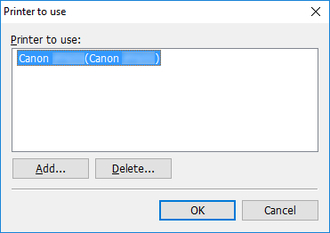
- Printer to use list
-
This list displays the printers displayed in the Printer pull-down menu on the main screen.
- Add button
-
This opens the Add printer dialog box and displays a list of installed printer drivers. Select the printer you want to add to the Printer pull-down menu on the main screen. For details on how to add a printer, see "Add a Printer to Use".
- Delete button
-
To delete a printer from the Printer pull-down menu on the main screen, select the printer from the Printer to use list, and then click this button.
- OK button
-
This closes the Printer to use dialog box and displays the printers in the Printer to use list in the Printer pull-down menu on the main screen.
