
Main Screen (Menu Bar)
The menu bar on the main screen has the following menus.

File Menu
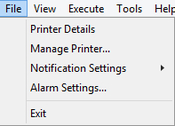
- Printer Details
-
The Printer Details dialog box appears, allowing you to check the detailed information for the selected printer.
- Manage Printer
-
The Printer Management dialog box appears, allowing you to manage managed printers.
- Notification Settings
-
Configure the settings for email to be sent when a warning or error occurs on the printer.
- Mail Server Settings
-
The Mail Server Settings dialog box appears, allowing you to configure the settings for sending email.
- Notification Conditions
-
The Notification Conditions dialog box appears, allowing you to configure the email notice recipient and notification conditions.
- Alarm Settings
-
The Alarm Settings dialog box will appear, where you can specify the alarm sound emitted when a warning or error occurs.
- Exit
-
Exits Device Management Console.
View Menu
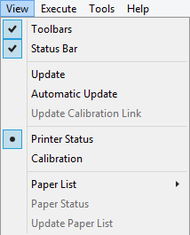
- Toolbars
-
Shows/hides the toolbar on the main screen.
-
When the check box is selected, the toolbar appears.
- Status Bar
-
Shows/hides the status bar on the main screen.
-
When the check box is selected, the status bar appears.
- Update
-
The printer status that appears on the Printer Status sheet is up to date.
- Automatic Update
-
Select whether to update the printer status on the Printer Status sheet regularly.
-
When the check box is selected, it is updated regularly.
- Update Calibration Link
-
Updates the printer list on the Calibration sheet.
- Printer Status/Calibration
-
Select Printer Status to display the Printer Status sheet.
-
Select Calibration to display the Calibration sheet.
- Paper List
-
Selects the media types displayed in the paper list on the Calibration sheet.
- Calibrated
-
Only color-calibrated paper appears.
- All
-
All paper appears.
- Custom Paper
-
Only custom paper appears.
-
Custom paper is paper added with Media Configuration Tool.
-
To execute color calibration with custom paper, the calibration target for that paper must be created.
-
For details on custom paper and creating a calibration target, search for and refer to the "Media Configuration Tool Guide" from the home page of the Online Manual for your model.
- Paper Status
-
The Paper Status dialog box appears, allowing you to check the color calibration status of the selected paper.
- Update Paper List
-
Updates the paper list on the Calibration sheet.
Execute Menu
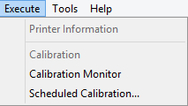
- Printer Information
-
The Web browser starts, and the main screen of the Remote UI for the selected printer appears.
- Calibration
-
The Calibration dialog box appears, allowing you to perform color calibration for the selected paper.
- Calibration Monitor
-
The Calibration Monitor dialog box appears, allowing you to check the color calibration progress status.
- Scheduled Calibration
-
The Scheduled Calibration dialog box will appear, where you can set the color calibration schedule.
Tools Menu
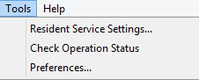
- Resident Service Settings
-
The Resident Service Settings dialog box appears.
- Check Operation Status
-
The Check Operation Status dialog box will appear, where you can check the operation status of the scheduled color calibrations.
- Preferences
-
The Preferences dialog box appears, allowing you to select the display language of Device Management Console.
Help Menu
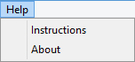
- Instructions
-
The Online Manual appears.
- About
-
The About dialog box appears, allowing you to check the version of Device Management Console.
