Page Layout Printing
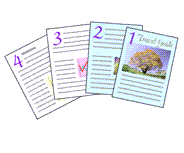
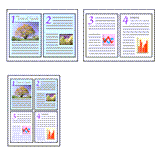
The page layout printing function allows you to print more than one page image on a single sheet of paper.
|

|
|
|
|
Set page layout printing
Select a page layout number from 2 on 1 to 16 on 1 from the Page Layout list on the Page Setup tab.
The current settings are displayed in the settings preview on the left side of the printer driver.Select the print paper size
Select the size of the paper loaded in the printer from the Printer Paper Size list.
Set the number of pages to be printed on one sheet and the page order
If necessary, click Preferences..., specify the following settings in the Page Layout Printing dialog box, and click OK.
- Page Order
- To change the page arrangement order, select a placement method from the list.
- Page Border
- To print a page border around each document page, check this check box.
Click OK to start printing
