Setting the Number of Copies and Printing Order
Specify the number of copies to be printed
For Copies on the Page Setup tab, specify the number of copies to be printed.
Specify the print order
Check the Print from Last Page check box when you want to print from the last page in order, and uncheck the check box when you want to print from the first page.
When printing multiple copies, the default behavior is to print all copies of page 1 first, then all copies of page 2, and so on. If you check the Collate check box, each copy will be printed in order from the first to the last page.- Print from Last Page:
 /Collate:
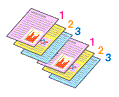
- Print from Last Page:
 /Collate:
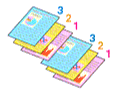
- Print from Last Page: /Collate:
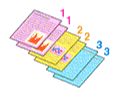
- Print from Last Page: /Collate:
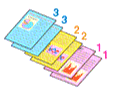
- Print from Last Page:
Click OK to start printing
 Important
- When the application software that you used to create the document has the same function, specify the settings on the Canon Print Assistant. However, if the print results are not acceptable, specify the function settings on the application software. When you specify the number of copies and the printing order with both the application software and this Canon Print Assistant, the number of copies may be multiplied numbers of the two settings or the specified printing order may not be enabled.
 Note
Note
- By setting both Print from Last Page and Collate, you can perform printing so that papers are collated one by one starting from the last page.
