Status Notification Description
When an error, warning, or other notification occurs, such as the printer running out of paper or ink running low, a Windows notification will appear. Clicking this notification will open the status notification screen. The printer status is shown by the images, icons, and messages in the status monitor.
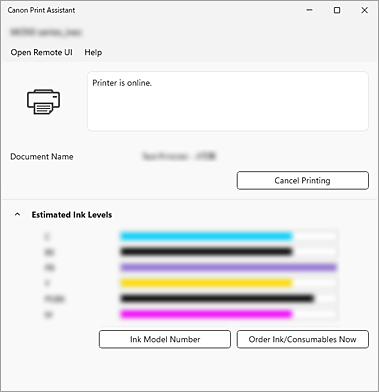
- Printer
-
If a warning or error occurs with the printer, an icon will appear to alert you.
 : There is a warning.
 : An error has occurred.
 : There is a notice about something other than a warning or an error.
- Cancel Printing
- Cancel the print job.
- Estimated Ink Levels
-
Displays ink types and estimated ink levels as images.
 Note
Note- Depending on your printer, icons or messages will appear when ink is running low or has run out. Hovering over the illustration will show detailed information.
- Ink Model Number
-
You can look up the correct ink model number for your printer.
Note
- Depending on your printer model, Ink Model Number may not be displayed.
- Open Remote UI menu
-
You are able to open the printer's Remote User Interface.
You are able to check the printer status and run maintenance functions on the printer when connected to and using it through a network.- Depending on the printer connection method or the type of error, Open Remote UI may not appear.
Note - Help Menu
- Opens the manual for the status notification screen.
