Media/Quality Tab Description
The Media/Quality tab allows you to create a basic print setup in accordance with the media type.
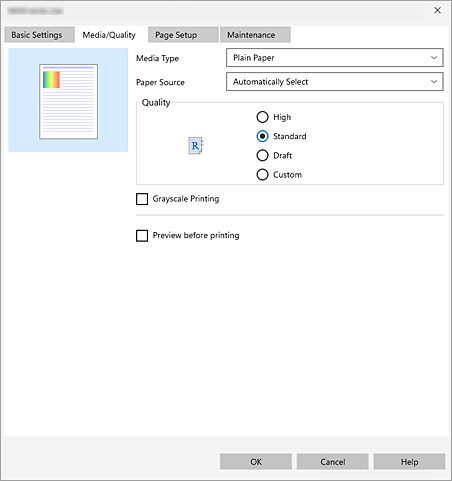
- Settings Preview
-
The paper illustration shows how the original will be laid out on a sheet of paper.
You can check an overall image of the layout. - Media Type
-
Selects a type of printing paper.
Select a media type that matches the paper that is loaded in the printer. This ensures that printing is carried out properly for the specified paper. - Paper Source
- Select the supply method for the paper source.
-
 Important
- Depending on the media type and size, the Paper Source settings that can be selected may differ.
- Quality
-
Selects your desired printing quality.
Select one of the following to set the print quality level that is appropriate for the purpose.- Custom
- Select this to set the print quality level individually.
- Set...
-
Select Custom in Quality to make it clickable.
Open the Custom dialog box to set individual print quality levels. - Depending on the Media Type settings, the available Quality options may differ, or changing Quality settings may have no effect on the output.
- Depending on your printer model, Custom may not be displayed.
Important Note
Note
- Grayscale Printing
- This function converts the data to monochrome data when printing your document.
- Preview before printing
-
Shows what the print result will look like before you actually print the data.
Check this check box to display a preview before printing.
Custom dialog box
Set the quality level, and select the desired print quality.
- Quality
- You can use the slider bar to adjust the print quality level.
-
Important
- Certain print quality levels cannot be selected depending on the settings of Media Type.
Note- The print quality modes are linked with the slider bar. Therefore, when the slider bar is moved, the corresponding quality and value are displayed on the left. This is the same as when the corresponding radio button is selected for Quality on the Media/Quality tab.
