
Print from AutoCAD
If you install Direct Print & Share on a computer that has Autodesk's CAD software AutoCAD installed on it, a Direct Print & Share plug-in will be added to AutoCAD.
You can start Direct Print & Share from AutoCAD and easily print drawings and make uploads to cloud storage.
 Note
Note
-
You can use the AutoCAD plug-in with AutoCAD 2008 and later versions of AutoCAD.
If you install AutoCAD 2011 or an earlier version of AutoCAD after installing Direct Print & Share, the AutoCAD plug-in is not added to AutoCAD. To add the AutoCAD plug-in, re-install Direct Print & Share.
-
Open a drawing in AutoCAD.
Note-
Open AutoCAD's Layout space. The AutoCAD plug-in cannot be used from the Model space.
-
-
Click Print and Preview from either AutoCAD's ribbon menu or by right clicking and selecting it from the displayed menu.
Note-
AutoCAD 2008 does not have a ribbon menu.
The Direct Print & Share will start after the PDF files that reflect the layout of open drawings are generated.
Note-
If you want to change the layout of a PDF file, change the layout of the drawing in AutoCAD and then click Print and Preview again.
-
-
Check that PDF file created from AutoCAD design appears in Registered file list on Direct Print & Share main screen.
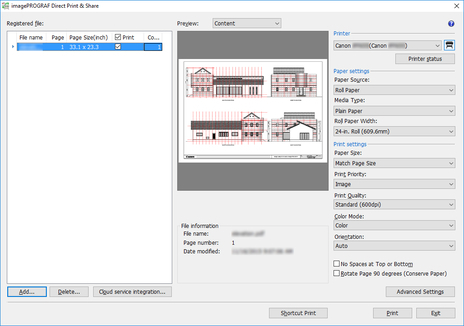
The generated PDF files can be printed and uploaded to cloud storage.
